
Your First Days at TalTech
Starting your studies at TalTech can feel overwhelming at first — new country, new systems, new people.
This page is designed to guide you step by step through your first days and weeks, so you know what to do, when to do it, and where to find help.
You do not need to complete everything at once. Many things happen gradually during your first weeks.
Before You Start: What Really Matters
Before classes begin, there are only a few essential things you should focus on:
- getting access to TalTech’s digital systems;
- understanding how your courses and timetable work;
- knowing where to ask for help.
Everything else can follow later.
Study Systems Explained
The Student Portal is your most important online environment at TalTech.
It brings together everything related to your studies in one place.
In the Student Portal, you will find:
- your personal timetable (after course registration);
- exam dates and information;
- links to Moodle, ÕIS, and your TalTech email;
- official announcements relevant to you;
- study-related contacts and reminders.
You can access the Student Portal at:
👉 https://student.taltech.ee
Login information
- You will receive your UNI‑ID username and password by email from our IT-HelpDesk.
- Your UNI‑ID is used across all TalTech systems.
Your UNI‑ID is your personal university user account at TalTech.
You will need it to access almost all digital services during your studies.
What you need UNI‑ID for:
- logging into the Student Portal;
- accessing ÕIS (Study Information System);
- using Moodle (study materials and assignments);
- opening your TalTech email account;
- accessing campus IT services (Wi‑Fi, printers, computers).
In practice, UNI‑ID is your single login for TalTech systems.
When and how do you get your UNI‑ID?
- Your UNI‑ID username and initial password will be sent to your email around the Orientation Days.
- The message includes instructions on how to log in and change your password.
- If you arrive later or miss the email, support is available.
Important things to know:
- Your UNI‑ID username usually stays the same throughout your studies.
- You are expected to change your password after the first login.
- Keep your UNI‑ID credentials private — they give access to personal study data.
Need help with UNI‑ID?
If you:
- did not receive your UNI‑ID;
- forgot your password;
- cannot log in;
you can use TalTech’s official UNI‑ID help pages or contact IT support.
ÕIS is where you:
- register for courses;
- see confirmed study results;
- manage formal study-related actions.
You can access the Student Portal at:
👉 https://ois2.taltech.ee
Course registration happens only through ÕIS, not by email or Moodle.
If you do not declare your courses in ÕIS at the beginning of the semester then you cannot take them. This declaration lets the university and the professors know that you will be participating in studies.
Moodle is where:
- lecturers upload materials;
- assignments are submitted;
- course announcements are shared.
You use Moodle after you have registered for courses in ÕIS. your courses will be automatically added to your account after you have declared your courses on ÕIS.
You can access the Student Portal at:
👉 https://moodle.taltech.ee
What to do on your first days at TalTech?
Your Timetable: How It Works
Many students worry about their timetable — this is normal.
Here’s how it works at TalTech:
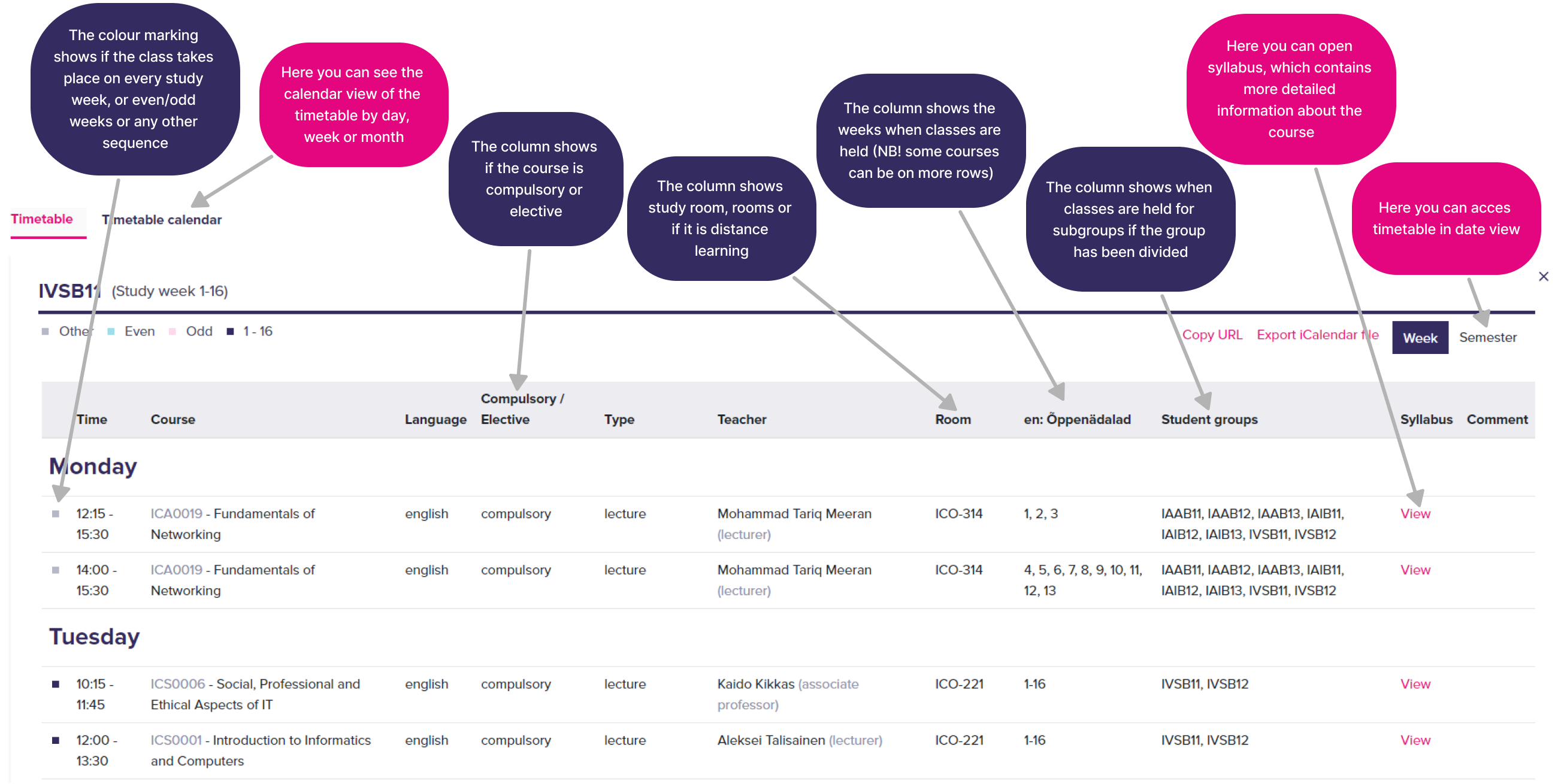
- All courses timetables are on the website https://tunniplaan.taltech.ee
- On that website you can see the initial times of your course
- Please take alook at all of your courses and see if you have any big overlaps
- If many courses overlap then please choose nwe courses from the exchange student course catalogue.
- The compleate and personalized timetable appears in the Student Portal after you declare your courses in ÕIS.
- Before course registration opens, timetables may be incomplete or change.
- During the first weeks, it is normal for timetables to be adjusted.
You may attend lectures during the first days even if course registration is not yet completed.
Course Declaration & Learning Agreement
- Course declaration on ÕIS opens on a specific date announced by TalTech. You can see the academic calendar here.
- Once registration is completed, you can:
- review your selected courses;
- update your Learning Agreement if necessary.
- Changes after the deadline foe declaring courses is not possible, so plan carefully.
If you are unsure which courses to take, ask:
- your home university;
- your TalTech coordinator;
- lecturers during the first classes.
Orientation Days & Orientation
The Orientation days are one of the most important parts of your start at TalTech.
During the orientation days you will:
- receive system instructions;
- learn how studying works at TalTech;
- meet other international students;
- get practical information about living in Tallinn.
If you cannot attend the orientation days in person:
- read the materials on the Orientation Days webpage;
- contact the Mobility Centre to collect your welcome materials later.
Student Support & Community
ESN TalTech International Club
ESN is a student organisation run by students, for students.
They offer:
- buddy programme;
- social events and trips;
- first‑hand support from other international students.
You will receive ESN contact information by email at the start of the semester.
You can access the Student Portal at:
👉 facebook.com/esntaltechic/
Practical First Steps in Tallinn
Public transport
- Use a public transport smartcard.
- Students receive discounted rates.
- Transport information is available via the City of Tallinn.
- You can read more about this here.
Residence registration & ID
- EU students register their residence after signing a rental contract.
- Non‑EU students follow instructions related to visa or residence permit.
- The Mobility Centre will guide you if needed.
If You Feel Lost, What To Do?
Feeling confused during the first weeks is completely normal.
If something is unclear:
- check the Student Portal first;
- ask your lecturer after class;
- contact the Mobility Centre;
- ask fellow students — everyone was new once.